Businesses are moving beyond traditional PCs as remote work, cloud applications, and flexible access become part of everyday operations. Managing desktops individually can create challenges with software updates, security, hardware maintenance, and remote access. Azure desktop virtualization addresses these challenges by hosting Windows desktops and applications in Microsoft Azure, allowing employees to access their work environment from supported devices and locations. With centralized management, scalable resources, and integration with Microsoft security services, it provides businesses with a flexible way to deliver and manage desktops in the cloud.
In this guide, we explain what Azure desktop virtualization is, how it works, its key features and benefits, how it compares to traditional desktops, and what to consider around security, cost, and deployment, so you can decide whether it’s the right fit for your business.
What is Azure Desktop Virtualization?
Azure desktop virtualization is a cloud-based approach that hosts Windows desktops and applications on Azure infrastructure rather than running everything directly on users’ physical computers.
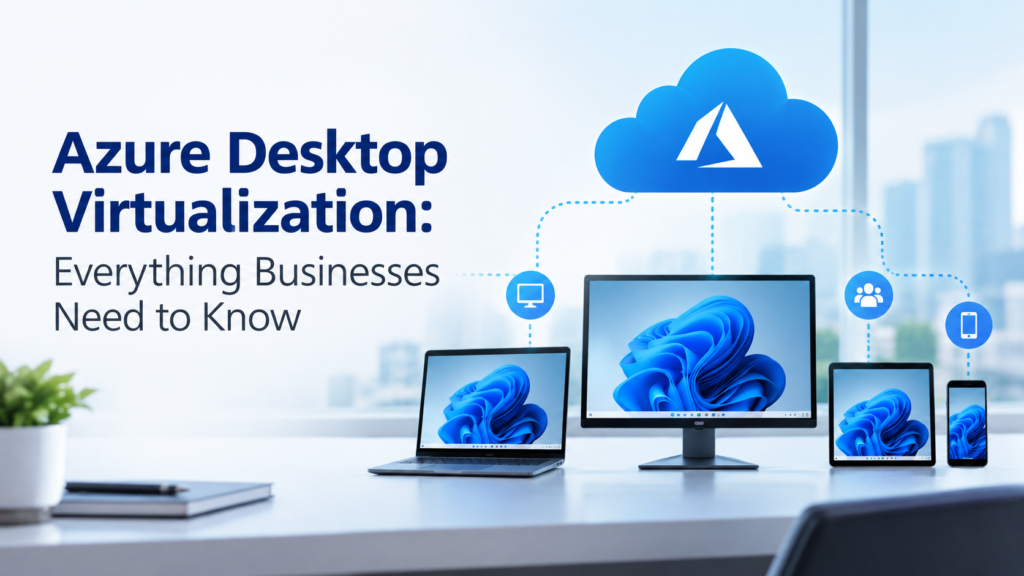
With Azure Virtual Desktop, employees can connect to their assigned desktop or applications from supported devices. The computing workload runs in Azure, while the user’s device acts as the access point.
This model can be useful for businesses with remote employees, hybrid teams, multiple offices, contractors, or users who need access to the same business applications from different locations.
How Does Azure Desktop Virtualization Work?
Understanding the main building blocks makes planning much easier.
- Host pools: Collections of identical virtual machines (session hosts) that users connect to. Pools can be pooled (shared by multiple users) or personal (assigned to one user).
- Session hosts: The Azure VMs that run Windows 10 or Windows 11 (including multi-session editions) or Windows Server.
- Application groups: Define what users can access, either a full desktop or individual published apps (RemoteApp).
- Workspaces: Logical groupings of application groups that users see when they sign in.
- Profile management: FSLogix profile containers keep user settings and data consistent across sessions.
- Identity: Microsoft Entra ID (formerly Azure AD), often combined with Active Directory Domain Services, handles authentication and access control.
When a user signs in, the Azure control plane authenticates them, picks an available session host, and establishes a secure connection through the Remote Desktop Protocol.
Key Features of Azure Desktop Virtualization
Here are the key features of Azure Desktop Virtualization:
1. Windows Desktop Delivery
Businesses can provide Windows desktops through the cloud instead of maintaining a complete desktop environment on every physical machine.
Depending on the deployment, organizations can provide individual desktops, multi-session Windows environments, or specific remote applications.
2. Multi-Session Windows
One of the notable capabilities of Azure Virtual Desktop is Windows Enterprise multi-session. Multiple users can share a Windows session host while maintaining separate user sessions.
This can improve resource utilization for workloads where dedicated virtual machines are not necessary for every employee.
3. Centralized Application Access
Applications can be installed and managed centrally within the virtual desktop environment. Employees can then access approved applications without requiring IT teams to manually configure every physical computer.
4. Identity and Access Management
Azure Virtual Desktop can integrate with Microsoft identity services to control who can access desktops and applications.
Organizations can also use security controls such as multi-factor authentication and Conditional Access as part of their broader Microsoft security strategy.
5. User Profile Management
User profiles are an important part of the virtual desktop experience. FSLogix can be used to manage user profiles and provide a consistent experience when users connect to different session hosts.
6. Remote Access
Employees can access their assigned desktops and applications from supported Windows, macOS, iOS, iPadOS, Android devices, and web browsers through Microsoft’s Windows App and supported access methods.
Benefits of Azure Desktop Virtualization
Here are the key benefits businesses can gain:
1. Support Remote and Hybrid Employees
Employees do not necessarily need to work from the same physical office to access their business desktop. A cloud-hosted environment can provide access from different locations while keeping applications and data within a centrally managed infrastructure.
2. Centralized IT Management
IT administrators can manage virtual desktop resources from a central environment. This can simplify tasks such as application deployment, configuration, patching, monitoring, and user access management.
3. Flexible Resource Scaling
Business requirements change over time. An organization may need additional desktop capacity during periods of growth or seasonal demand.
Azure resources can be adjusted based on workload requirements, allowing organizations to build an environment that can grow with their users.
4. Better Control Over Business Data
With desktops hosted in the cloud, businesses can reduce their dependence on storing application data directly on employee devices. Access controls, identity policies, backups, and security measures can be managed centrally as part of the overall Azure architecture.
5. Access From Multiple Devices
Employees may use different devices for work. A virtual desktop environment can provide a consistent Windows experience without requiring every device to have the same hardware configuration.
Azure Desktop Virtualization vs Traditional Desktops
Traditional desktop infrastructure typically requires organizations to manage operating systems, applications, hardware, storage, security, and updates across individual computers.
With Azure desktop virtualization, much of the desktop computing infrastructure can be hosted centrally in Azure.
The difference can be summarized as:
| Factor | Traditional Desktops | Azure Desktop Virtualization |
| Desktop location | Physical device | Azure cloud |
| Access | Primarily device-based | Supported devices and browsers |
| Application management | Often device-by-device | Centrally managed |
| Hardware dependency | Higher | Lower for user devices |
| Scaling | Requires additional hardware | Azure resources can be adjusted |
| IT management | Distributed | More centralized |
| Remote work | May require additional solutions | Built around remote access |
The actual cost, performance, and management requirements depend on the architecture and workload.
Is Azure Desktop Virtualization Secure?
Security depends on how you design, configure, and manage the environment. Azure Virtual Desktop provides several security capabilities, but businesses still need to establish appropriate identity, network, endpoint, application, and access controls. Important measures include multi-factor authentication (MFA), Microsoft Entra ID, Conditional Access, least-privilege access, endpoint protection, network segmentation, encryption, and security monitoring.
Businesses should also maintain regular patching, backup and recovery procedures, and strict controls over administrative access. The security strategy should be aligned with the organization’s applications, users, data, and compliance requirements rather than relying on a single security feature or control.
What Does Azure Desktop Virtualization Cost?
Azure Virtual Desktop has no single fixed price because total cost depends on how you configure and use the environment. Key cost factors include virtual machine size, number of users, concurrent sessions, storage, operating system licensing, networking, backup requirements, application requirements, monitoring, management, and overall usage patterns.
Businesses can also use scaling strategies to reduce unnecessary spending by adjusting resources based on demand. Before deployment, organizations should estimate both Azure infrastructure and licensing costs and consider how resource requirements may change as the number of users, applications, and workloads grow.
Who Can Benefit From Azure Desktop Virtualization?
Azure Virtual Desktop can be suitable for organizations with different desktop requirements, particularly those that need centralized management or remote access.
Common use cases include:
- Remote and hybrid workforces that need consistent access to company apps
- Contractors, seasonal staff, and BPO teams who need temporary, controlled access
- Legacy and line-of-business applications that are hard to run on modern endpoints
- Developers and testers who need isolated, on-demand environments
- Healthcare, finance, and legal firms with strict data-protection requirements
- Mergers and acquisitions, where new teams must be onboarded quickly
- Graphics-intensive workloads, using GPU-enabled VM sizes
The right architecture depends on the application’s technical requirements and the organization’s security, performance, and budget considerations.
Best Practices for a Successful Deployment
- Assess your environment first: Inventory users, applications, performance needs, and dependencies.
- Design your landing zone: Plan subscriptions, networking, identity, and governance before building host pools.
- Build golden images: Standardize and automate images with Azure Compute Gallery and tools such as Azure Image Builder.
- Use FSLogix wisely: Place profile containers close to session hosts to reduce login times.
- Apply zero-trust security: Enforce MFA, least-privilege access, and device compliance.
- Monitor user experience: Track login times, latency, and resource usage with AVD Insights.
- Pilot before rollout: Start with a small group, collect feedback, and refine.
- Support plan: Decide who will handle patching, image updates, and troubleshooting.
Common Challenges to Plan For
- Application compatibility: Some legacy apps need testing or repackaging.
- Network quality: Poor connectivity affects user experience, so plan bandwidth and consider region placement.
- Cost surprises: Unmanaged VMs left running can inflate bills.
- Skills gap: Azure networking, identity, and image management require specialized knowledge.
Working with an experienced partner can help you avoid these issues.
Managed vs Self-Managed Azure Virtual Desktop
Businesses can manage Azure Virtual Desktop internally or work with a managed service provider.
A self-managed approach gives an organization’s IT team direct responsibility for architecture, deployment, monitoring, updates, security, and troubleshooting.
A managed approach shifts some or most of these responsibilities to an experienced provider. This can be useful for organizations that do not have dedicated Azure expertise or want their internal IT team to focus on other priorities.
The right model depends on the organization’s technical capabilities, staffing, budget, and management requirements.
Why Choose Apps4Rent for Azure Desktop Virtualization?
For businesses seeking a fully managed solution, Apps4Rent provides Azure Virtual Desktop with Windows 11 Enterprise multi-session, scalable cloud resources, and managed infrastructure at a predictable monthly price.
Apps4Rent manages host pool design, VM sizing, golden image builds, Microsoft Entra ID, FSLogix profiles, patching, monitoring, and capacity changes. Users can access their desktops through the Windows App on Windows, macOS, iOS, iPadOS, Android, and modern browsers.
Businesses can choose session-based, dedicated, or custom AVD environments based on their workloads, while Apps4Rent provides Azure management, backup, licensing, and 24/7 end-user support as part of its managed service.
Conclusion
Azure desktop virtualization gives businesses a way to deliver Windows desktops and applications from Azure while centralizing much of the infrastructure and management. It can support remote work, centralized application delivery, flexible scaling, and access across multiple device types.
However, successful deployment requires careful planning around user workloads, application compatibility, identity, security, networking, storage, licensing, and ongoing management.
For organizations that prefer professional assistance rather than managing the entire environment internally, Apps4Rent provides managed Azure Virtual Desktop services covering deployment, configuration, monitoring, maintenance, and ongoing support.